|
|
|
 You can create Web Greetings with your choice of: You can create Web Greetings with your choice of:
- Images,
- Music,
- Text and
- Visual Effect.
Steps for creating are as follows:
1. Create Web Greetings
2. Export Web Greetings files to a specified folder
3. Public the folder to Internet
4. Send links of published files to your friends
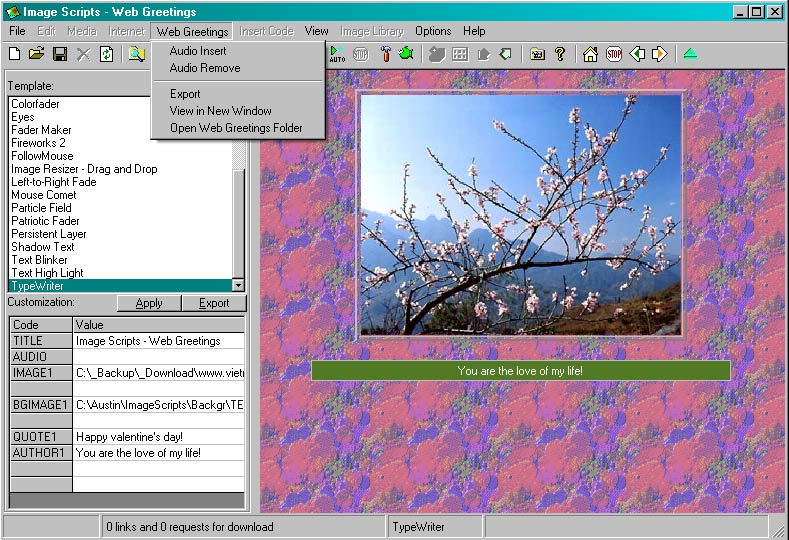
1. Click menu "Web Greetings"
2. Select a template: Click a template in the template list
3. Change title: Click "Title" in Grid "Customization"
4. Change images: Click image items in Grid "Customization"
5. Change text: Click text items (Quote, Author) in Grid "Customization"
6. Add/Remove music by menu "Web Greetings/Audio Insert" or "Web Greetings/Audio Remove"
7. Click button "Apply"
8. Go back to 2,3,4,5,6 if necessary
Top
1. Click menu ""Web Greetings/Export" or button "Export"
2. You will be asked to Confirm file name WGxxxx.htm to export. You should change the file name to a specific name, for example Alex.htm.
3. Display the file in new window to check by menu ""Web Greetings/View In New Window"
The file path should have subpath Pages
There are 5 times to export file in try version.
Top
1. Registry an Internet domain path. You can create yourself an http://www.yahoo.com account, that gives you an Internet path at http://www.geocities.com.
2. Upload the Web Greetings folder to the Internet domain path
3. Open the corresponding internet file
For example,
- If your local Web Greeting folder is C:\WebGreetings\Pages\,
- You have 3 Greetings cards:
C:\WebGreetings\Pages\Martin.htm,
C:\WebGreetings\Pages\Sue.htm,
C:\WebGreetings\Pages\Alex.htm,
- You have account Dima2005@yahoo.com that gives you internet path http://www.geocities.com/Dima2005/
- You create a new folder http://www.geocities.com/Dima2005/Xmas/ and upload all the files and sub folders from folder C:\WebGreetings\ to the internet folder.
- Your internet links will be
http://www.geocities.com/Dima2005/Xmas/Martin.htm,
http://www.geocities.com/Dima2005/Xmas/Sue.htm,
http://www.geocities.com/Dima2005/Xmas/Alex.htm
Top
For the example above, Send internet links for your friends:
http://www.geocities.com/Dima2005/Xmas/Martin.htm,
http://www.geocities.com/Dima2005/Xmas/Sue.htm,
http://www.geocities.com/Dima2005/Xmas/Alex.htm.
Top
|
| |


