|
|
|
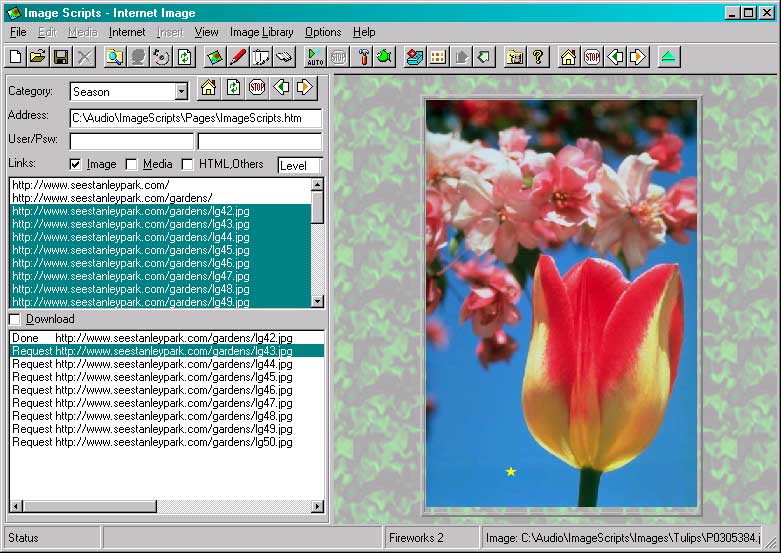
 A simple layout supports to define internet addresses to download: A simple layout supports to define internet addresses to download:
| | Category box: | displays category for saving an address |
| | Address: | provides place to enter an address |
| | User/Psw: | are used for accessing sites/links that are protected by user/password |
| | Links: | helps to specify what type of links you want to see. |
| | Level: | of exploration depth - how far to get links from original address |
| | Starting by: | is to get links that have expected starting text. |
| | Links list: | Show all links of the specified types and the links that are refered from the address.
You can use menu by clicking right mouse to select links to download |
| | Download: | List of addresses to download |
| | View area: | displays the currently selected image |
Navigation
- Address can be typed in address field. Double click or press Enter, links of the address will be displayed in a list below.
- Buttons
 , ,  to return addresses you typed. to return addresses you typed.
- Click right mouse to see menu Save as Home. Button
 gets the address you saved. gets the address you saved.
- Button
 is for refreshing the address, while button is for refreshing the address, while button  is to stop getting the address is to stop getting the address
- Click the address field or press Enter, referred links from the address will be appeared in Links list
- If you like to open an address in the list, click menu Open Link in right mouse button.
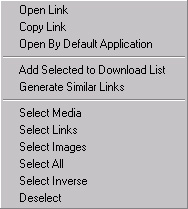
- Menu Open by default application will call appropriate software to open selected link.
- If menu Auto Add Link To Download List is checked, all the links in link list will be added to the download list.
- You can select items of the list, then click menu Add selected to download list in right mouse button to download later.
- Menu Generate similar links helps to add a serie of links basing on the selected link
- Menu Copy link will help to pass selected link to somewhere
- You can select/deselect links by menu Select...
- A link in download list will be downloaded if you click double on a link in download list
- Click menu Display Images: All images of the download list will be downloaded and displayed with image effect predefined in Image Browse
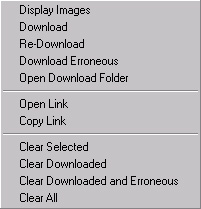
- Download for all the links of the download list will be started when you click option Download or menu Download in right mouse button for the download list
Click the menu again to stop download.
- Download Timer option to set starting time for downloading
- Internet files are saved in a folder defined on menu Options/Options, tab Internet.
- Menu Open download folder will open the folder
- Item of the download list can be selected or removed by menu Clear...
View Option
- Select an effect name in Effect list in in Image Browse, image will be displayed by the effect.
- You can display images of download folder in full screen by setting Options/Options, tab Others.
The display zone can be set in right or left by menu View/Image in right side
Save web page
Click menu File/Save Web Page or button  in tool bar to save displayed web page with/without all its images. in tool bar to save displayed web page with/without all its images.
Save web link
An image folder can be saved for showing later. Click menu File/Save Web Link to save the link for later browsing images of the page in Auto Display.
Open saved image folder
Click menu Internet/Download/Open Download Folder or the menu Open Download Folder in right mouse's menu: Folder where the link was saved will be shown
Remove saved image folder
Click an item of file list and click menu File/Remove or button  in tool bar in tool bar
Notes
Context menus are available by clicking with the alternate mouse button in the file list, tool bar.
You can navigate by mouse or keyboard for items in file list and effect list.
A lot of "How to" Q&A could give more details for effective use of the Image Scripts.
|
| |


