Image Scripts


Home
 

Image Display
 

Media Play
 

Web Greetings
 

Internet Image
 

Templates Control
 

Tools
 

Games


An Explorer-like layout helps to define image options:
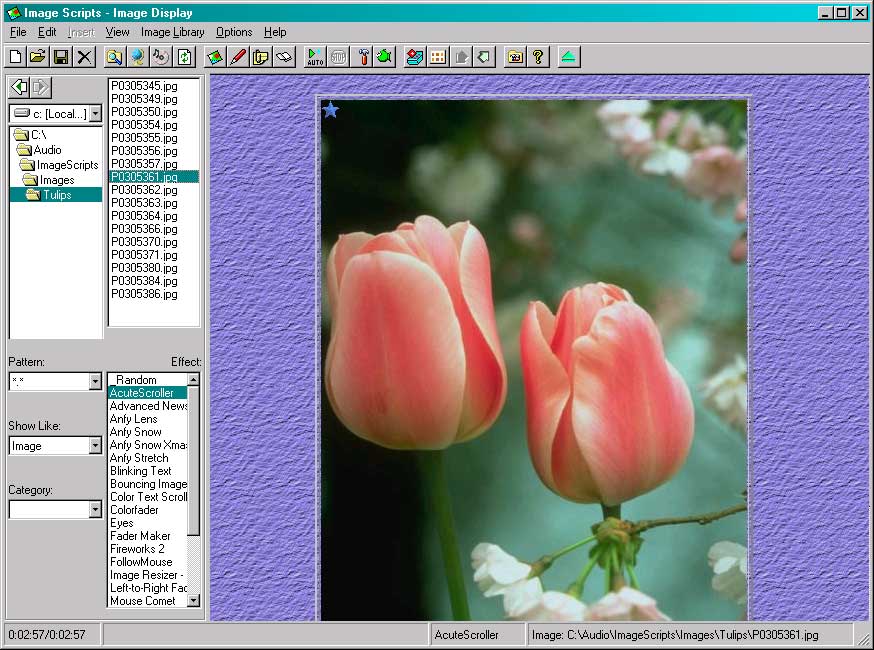
 Category box:displays category for current folder for saving current folder
 Toolbar:provides buttons to activate commands
 Status bar:displays status information for selected files and effects
 Driver box:specifies the driver of the current folder
 Path box:specifies the path of the current folder
 File pattern:sets pattern for current folder
 File list:displays the files within the current folder
 Show Like box:displays where to browse image
 Effect list:provides choice of effect
 View area:displays the currently selected image


Navigation

  • File Pattern is used for file filter in file list.
  • You can navigate through your file system by clicking on folders and drives
  • To open a folder or a drive, click on the icon.

View Option

  • Select item in ‘Show Like’ box to define where to browse image:
     Image:to browse image in center
     Background:to display image in background
     Gif Icon:to display image in like small icon on top
  • Select an effect name in Effect list, image will be displayed by the effect.
  • Item ‘Rundom’ will show image by a rundom effect from the list.
  • Menu View/Display image by its size: Image will be displayed with its original size. Otherwise image will have changed size to fit in the window's size.

Save

An image folder can be saved for showing later. Click menu File/save or button in tool bar to save.

Open saved image folder

Click menu File/Open/Image or button in tool bar to see a list of image folders.
Click an item of the list or click button in toolbar again to open the saved image folder.

Remove saved image folder

Click menu File/Open/Image to see a list of image folders. Click an item of the list and click menu File/Remove or button in tool bar

Notes

Context menus are available by clicking with the alternate mouse button in the file list, tool bar.
You can navigate by mouse or keyboard for items in file list and effect list.
A lot of "How to" Q&A could give more details for effective use of the Image Scripts.
  
     
Back to top   Site Map   
   Updated 06 January 2004
Email: austindn@hotmail.com