| # |
Action |
Example |
| 1 |
Search in Internet for scripts |
http://java.searchrealm.com/
http://javascript.internet.com/
Eyes script in http://javascript.internet.com/miscellaneous/eyes.html
|
| 2 |
Click File/New/Template in Image Scripts |
|
| 3 |
Adding scripts in <HEAD></HEAD> if necessary |
|
| 4 |
Adding command in <BODY > if necessary |
|
| 5 |
Adding scripts in <BODY></BODY> if necessary |
<BODY>
<SCRIPT LANGUAGE="JavaScript1.2">
var brOK = false, mie = false;
if (document.layers || document.all) brOK = true;
if (document.all) mie = true;
...
</SCRIPTS>
|
| 6 |
Add background image codes if necessary:
Menu Insert/Background Image/... |
<BODY background= %BGIMAGE1% > |
| 7 |
Add image with/height/top/left codes if necessary.
Menu Insert/Image Width/...
Menu Insert/Image Height/...
Menu Insert/Image Top/...
Menu Insert/Image Left/...
|
<IMG src= %IMAGE1% width= %IMAGEWIDTH% >
|
| 8 |
Add image codes if necessary.
Menu Insert/Image Name/... |
<IMG src= %IMAGE1% width= %IMAGEWIDTH% >
|
| 9 |
Add gif icon codes if necessary.
Menu Insert/Gif Icon/... |
function placeeyes(x, y) {
if (brOK) {
s = '<DIV ID ="dummy" + ...
%GIFICON1NAMEONLY% + '" border=0></DIV>';
}
|
| 10 |
Add Quote codes if necessary |
var ctext ="%QUOTE1%"; |
| 11 |
Save supported image files for the script to folder 'ImageScripts program path'/Pages/Images (C:/Program Files/ImageScripts/Pages/Images for example).
Edit links to the image files with consideration that the template is located in folder 'ImageScripts program path'/Pages/ (C:/Program Files/ImageScripts/Pages/ for example)
|
|
| 12 |
Save supported files for the script to folder 'ImageScripts program path'/Pages (C:/Program Files/ImageScripts/Pages for example),
Edit links to the files with consideration that the template is located in folder 'ImageScripts program path'/Pages/ (C:/Program Files/ImageScripts/Pages/ for example) |
|
| 13 |
Preview Template by File/Preview |
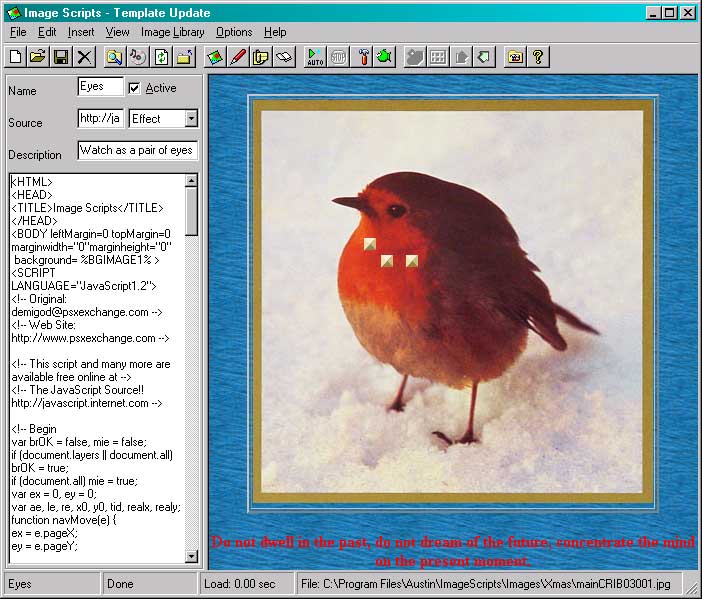
See screen as bellows:
A image file is displayed in center,
three orange gif-icons are moving with your mouse
and a quote in blue is shown bottom |
| 14 |
Redo step 3-13 if necessary |
|
| 15 |
Check Performance
You should check performance of the scripts/applets you've got from Internet:
For win2K Cntr+Alt+Del, click 'Task Manager', Tab 'Performance'
Keep the Performance open for a while to check if CPU usage and memory usage of the scripts/apllets are good enough/accepted.
If so you can leave the template 'Active'. Otherwise - set the template non-active or simply remove the template.
|
| 16 |
Set combo box value: Effect/Tool/Game/Thumbnails
Effect: template is for image display
Tool: Template will be in Tool list
Game: Template will be in Game list
Thumbnails: Template for Thumbnails feature
|
select 'Effect' |
| 17 |
Save by File/Save or button  in toolbar in toolbar |
|