|
|
|
Image Scripts provides 3 ways for browsing collection of images.
| |  Photo Show: Photo Show: | Auto / Manual Browse collection of images by predefined category |
| |  Slide Show: Slide Show: | Auto Browse Images of a folder |
| |  Thumbnails: Thumbnails: | Manually Browse Images of a folder in thumbnails |
| | | |
Image Library
Auto/Manual Browse collection of images by predefined categories
Setting
Click menu Image Library/Setting to see a new window. By selecting category from a category list in left, saved image folders, quote will be appeared in two lists in right side.
Use button >,<, >>, << or click items in the lists to define which items will be used for Image Library Show.
Image Change Frequency: defines time delay between two displays.
Auto Display
Click mouse on Image Library/Start to begin the show. You can stop, pause, or continue then show. Keyboard F8, and Shift+F8 are more convenient then mouse click for the case
Buttons  in toolbar can can start/stop the show. in toolbar can can start/stop the show.
Manual Display
Click menu Image Library/Next or Previous to see images predefined in Image Library setting manually. Keyboard F11 and F12 are equivalent to the menu Image Library/Next or Previous. Buttons   in toolbar can also activate the same action. in toolbar can also activate the same action.
Slide Show
With an image folder, this feature displays all images in file list in ascending order.
Just click View/Slide Show or button in tool bar or press F9. Second click/ press will stop the Slide Show.
Images is displayed in full screen if menu View/Slide in full screen is selected.
Thumbnails
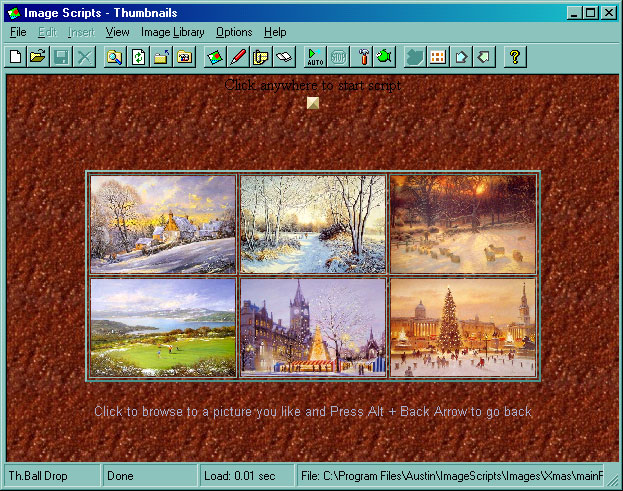
Images of current folder can be displayed in thumbnails if click menu View/Thumbnails, or press F4 or click button in tool bar.
Click a thumbnail to see full image.
Click or press Alt+Back Arrow to go back to the thumbnails.
Click to see previous or next thumbnails
Thumbnails templates are editable in File/Open/Template  . .
|
| |


